Builder: Events
Events define the observable activity Builder can recognize. They are the foundation for Conversions, Segments, Flows, and many Actions.
An event should answer a simple question: "What happened?" Examples include a form submission, a product view, an add-to-cart action, a purchase, a refund, or a closed-won CRM deal.
Event sources
Event sources are shown as Web, Shopify/ecommerce, and CRM in the Builder UI.
| Source | Event types |
|---|---|
| Web | Form Submission, Element Click, Page View, Input Change, Video View. |
| Shopify/ecommerce | Add to Cart, Remove from Cart, Cart Abandoned, Checkout Started, Contact/Shipping/Address/Payment Info Submitted, Checkout Completed, Purchase, First-Time Purchase, Repeat Purchase, Refund, Product Viewed, Collection Viewed, Search Submitted. |
| CRM | Contact Created, Deal Created, Deal Won, Deal Lost, Meeting Booked, Meeting Completed, Opportunity Created, Closed Won, Closed Lost, Task Completed. |
Use the source to audit where a number can come from. A Shopify/ecommerce event should reconcile to commerce behavior. A Web event should be checked against pixel collection and page rules. A CRM event should be checked against the CRM integration and mapped deal/contact state.
For related overview docs, see Identity and session coverage and Data readiness and coverage.
System event notes
Some ecommerce events are derived from a sequence of observed commerce activity rather than from a single platform event. Cart Abandoned is the most important example. When Kleerr sees cart activity, it waits for the account's Abandoned Cart Delay before treating that cart as abandoned.
The default delay is 2 hours. Owners/admins can change it in Settings > Company > Ecommerce Control. The minimum is 7 minutes and the maximum is 30 days. If the shopper purchases or clears the cart before the delay elapses, Kleerr clears the pending abandoned-cart state and does not emit the abandoned event.
Use Cart Abandoned for cart recovery flows, Cart Abandoned CAPI, and short-retention retargeting audiences. For how event-derived CAPI signals train ad platforms and build event-based audiences, see Kleerr CAPI overview and CAPI and audience sync.
Event type reference
These are the event types Builder can create, seed, or audit. The labels below match the business-facing language users see in the UI.
Web event types
| Label | What it means | Common use |
|---|---|---|
| Form Submission | A visitor submits a tracked native form, embedded form, or lead form. | Lead capture, newsletter signup, demo requests. |
| Element Click | A visitor clicks a selected button, link, image, CTA, or element. | CTA intent, outbound clicks, pricing/contact taps. |
| Page View | A visitor lands on a matching page. | High-intent pages, content visits, browse intent. |
| Input Change | A visitor changes an input, select, textarea, or similar field. | Partial form intent and field-level engagement. |
| Video View | A visitor plays a detected YouTube, Vimeo, Wistia, Loom, or HTML5 video. | Video engagement audiences and conversions. |
Shopify/ecommerce event types
Kleerr seeds default Shopify events for Product Viewed, Added to Cart, Checkout Started, Purchase, Cart Abandoned, Order Fulfilled, Order Cancelled, and Refund Completed. Builder can create custom events from the non-seeded Shopify picker types below.
| Label | What it means |
|---|---|
| Product Viewed | Shopify reports that a shopper viewed a product detail page. |
| Add to Cart | Shopify reports that a shopper added a product variant to cart. |
| Remove from Cart | Shopify reports that a shopper removed a product variant from cart. |
| Cart Abandoned | Kleerr marks a Shopify cart abandoned after the configured delay. |
| Checkout Started | Shopify reports that a shopper began checkout. |
| Contact Info Submitted | Shopify reports checkout contact details such as email or phone. |
| Address Info Submitted | Shopify reports checkout address details. |
| Shipping Info Submitted | Shopify reports checkout shipping details and selected shipping data. |
| Payment Info Submitted | Shopify reports that payment information was submitted. |
| Checkout Completed / Purchase | Shopify reports a completed checkout, meaning an order was placed. |
| Collection Viewed | Shopify reports that a shopper viewed a collection page. |
| Site Search | Shopify reports that a shopper submitted a site search. |
| Order Fulfilled | Shopify reports that an order transitioned to fulfilled. |
| Order Cancelled | Shopify reports that an order transitioned to cancelled. |
| Refund Completed | Shopify reports that a refund lifecycle event completed. |
CRM event types
| Label | What it means |
|---|---|
| Contact Created | The CRM reports a new contact. |
| Deal Created | The CRM reports a new deal. |
| Deal Won | A CRM deal is marked won. |
| Deal Lost | A CRM deal is marked lost. |
| Meeting Booked | A CRM or calendar integration reports a booked meeting. |
| Meeting Completed | A CRM or calendar integration reports a completed meeting. |
| Opportunity Created | A sales opportunity is created. |
| Closed Won | A sales opportunity is closed won. |
| Closed Lost | A sales opportunity is closed lost. |
| Task Completed | A CRM task is completed. |
Available filters
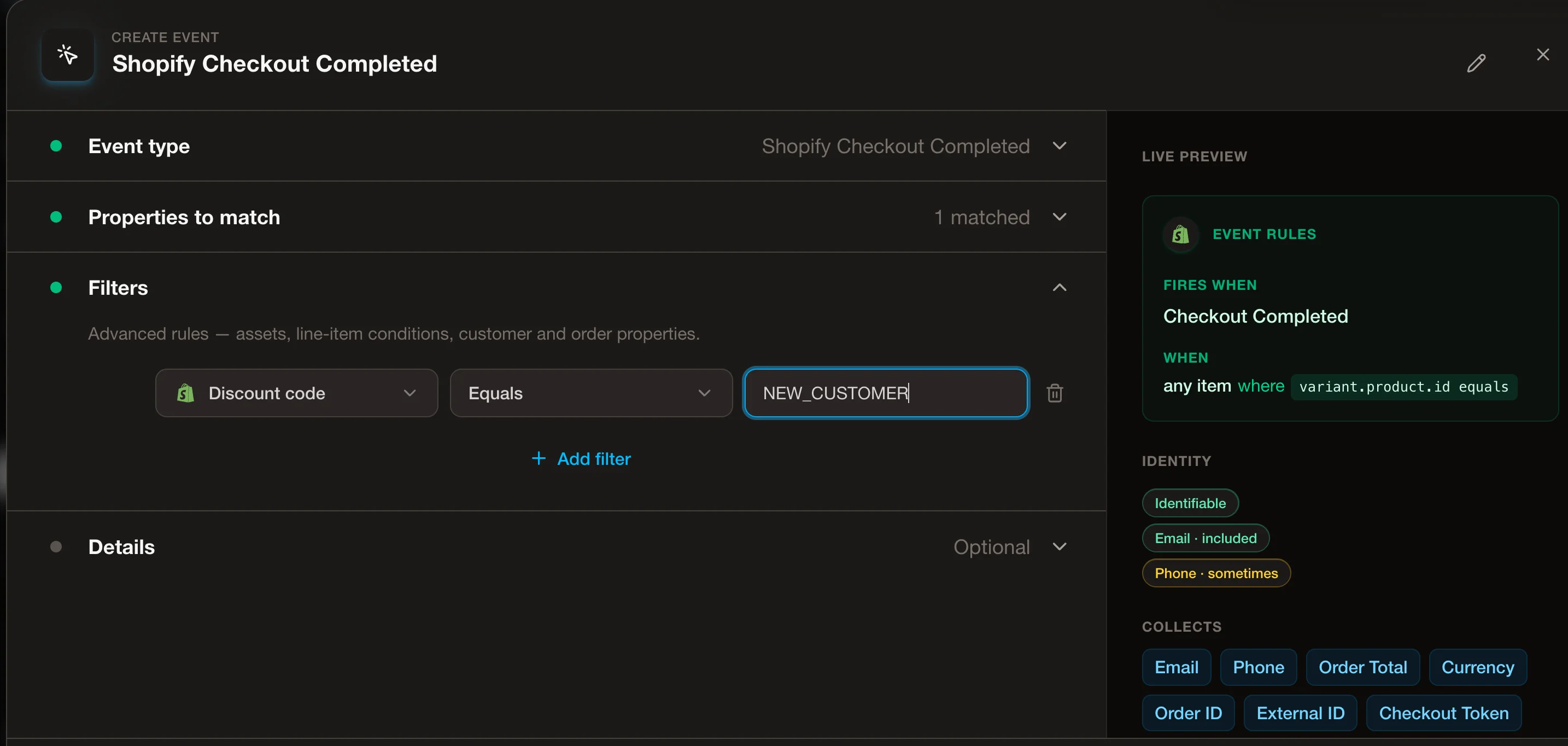
Rules can be grouped with AND/OR. Operators include Equals, Contains, Starts With, Ends With, Regex, Greater Than, Greater or Equal, Less Than, and Less or Equal. The available operators depend on the selected field type: text fields show text operators, numeric fields show comparison operators, and boolean fields use equality.
Web filters
All web event rules can filter by Asset and Page Path. Builder also stores selector matching conditions for the selected web element, form, input, or video.
| Event type | Rule filters available |
|---|---|
| Form Submission | Asset, Page Path, submitted Form Value. |
| Element Click | Asset, Page Path. |
| Page View | Asset, Page Path, Time on Page (seconds), Scroll Depth (percent). Page View requires a page-path filter. |
| Input Change | Asset, Page Path, Input Value. |
| Video View | Asset, Page Path, Watch Percentage, Watch Time (seconds). |
Selector matching can use practical page details such as the selected element, visible text, link destination, form/input attributes, or video source. These selector conditions determine which specific element, form, input, or video fires the event; rule filters narrow the event further after it is captured.
Location filters for country, region, and city are not generally available in the current dashboard. Do not treat them as available web rule fields.
Ecommerce filters
Shopify/ecommerce events expose commerce properties based on the selected event type. The exact list changes by event because Shopify does not send every field on every lifecycle step.
| Filter group | Examples |
|---|---|
| Product | Product, variant, category, vendor, SKU, and quantity details. |
| Cart & Order | Cart/order value, currency, item count, recovery link, new-customer status, order count, customer value, lifecycle status, and cancellation/refund reasons. |
| Customer | Email, phone, name, company, address, city, country, and postal code. |
| Discounts | Discount count, code, title, type, value, and currency. |
| Shipping | Shipping price, title, type, and discounted shipping values. |
| Browsing | Page URL, collection details, search query, and search result counts when the event provides them. |
Events with line-item data also support commerce item rules. Use those when the condition needs to match a product, SKU, vendor, quantity, or result count inside checkout items, cart items, collection variants, or search results.
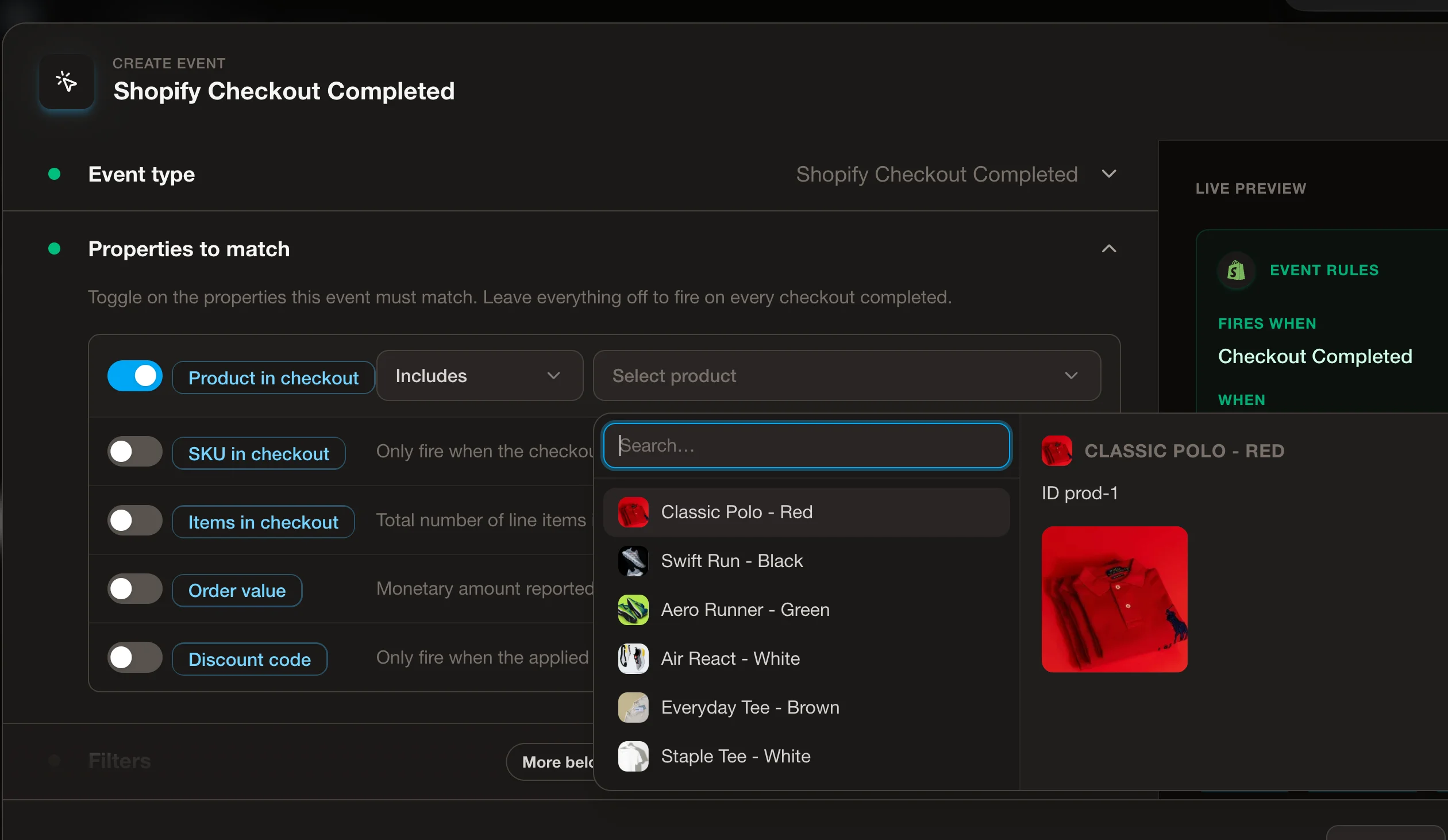
Builder hides internal and system fields from the ecommerce filter picker. Shopify region/state is also not currently available as an ecommerce rule filter.
Default and custom events
Default events are system definitions used by templates and reporting. Some are locked, so they cannot always be edited, archived, or deleted.
Use a custom event when:
- the default event is too broad for the use case;
- a page path, element, form, product, or CRM field needs extra filtering;
- the same source event needs multiple business meanings.
Example: Purchase can remain the broad commerce event, while High-Value Order can be a custom event that filters purchases above a value threshold.
Event templates
Common templates include:
| Event | What it captures | Typical use |
|---|---|---|
| Newsletter Signup | A selected site form submission. | Welcome series, list growth, lead audiences. |
| Lead Capture Form | A lead-generation form submission. | Qualified lead conversion and CRM follow-up. |
| Book a Demo | A demo CTA click or form submission. | B2B high-intent conversion and CRM follow-up. |
| Pricing Page Intent | Pricing page view with intent filters such as time or scroll depth. | Retargeting high-intent visitors. |
| Engaged Visitor | Behavioral engagement such as page depth or time on page. | Nurture and retargeting. |
| Add to Cart | Shopify product added to cart. | Cart abandonment and intent audiences. |
| Cart Abandoned | Kleerr-emitted Shopify cart abandonment after the configured delay. | Cart recovery flows, CAPI, and retargeting audiences. |
| Product Viewed | Shopify product view. | Browse abandonment and product-interest audiences. |
| Checkout Started | Checkout started. | Checkout abandonment and high-intent retargeting. |
| Purchase | Completed checkout or purchase event. | Purchase conversion and buyer audiences. |
| First-Time Purchase | Purchase by a new customer. | Acquisition reporting and new-buyer audiences. |
| High-Value Order | Purchase above a value threshold. | VIP audiences and value-based bidding. |
| Site Search | Search submitted. | Search abandonment and merchandising insight. |
| Search With No Results | Search submitted with no product results. | Product/content gap analysis and support. |
| Refund | Refund event. | Retention risk and post-purchase analysis. |
| Closed-Won Deal | CRM deal won. | B2B customer conversion and CAPI. |
Template ideas and use cases
Use event templates when a marketer can describe the behavior in plain language but should not have to build low-level capture rules from scratch.
| Use case | Event template to start from | Usually feeds |
|---|---|---|
| Cart recovery | Add to Cart | Cart Abandoned segment, recovery flow, CAPI. |
| Checkout recovery | Checkout Started | Checkout Abandoned segment and CAPI action. |
| Browse retargeting | Product Viewed | Browse Abandoners segment and ad audience. |
| Lead capture | Lead Capture Form | Qualified Lead conversion and CRM action. |
| Demo request | Book a Demo | Demo Booked conversion and sales follow-up. |
| Search-intent retargeting | Site Search | Search Abandoners segment and paid audience. |
| Offline revenue feedback | Closed-Won Deal | Closed Won conversion and CAPI action. |
Templates should create the narrowest useful event. A broad Page View event
can be useful for analysis, but a flow or action usually needs something more
specific, such as Pricing Page Intent or Product Viewed.
Events list columns
The Events table has these columns: Name, Identity, Type, Source, Filters, Status, Created. Name, tags, connection chips, and the conversion/default badges appear inside the Name cell.
| Column or badge | Meaning |
|---|---|
| Name | Definition name. The cell also carries tag chips, a connections chip, and badges below. |
| Identity | Identity coverage: identified, partial, or anonymous. |
| Type | Event-type label, such as Page View, Add to Cart, or Deal Won. |
| Source | Web, Shopify/ecommerce, or CRM. |
| Filters | Count or summary of the event's matching rules. |
| Status | Active or Archived. |
| Created | Creation date and creator. |
| Conversion badge | In the Name cell, indicates the event is used as a conversion trigger. |
| Default badge | In the Name cell, indicates a locked default ecommerce system event. |
| Connections chip | In the Name cell, shows Conversions, Segments, and Flows that reference the event. |
| Tags | In the Name cell, user-managed organization tags. |
How events affect the platform
Events are building blocks:
- A Conversion counts an Event as a business outcome.
- A Segment can enter or exit users based on Events.
- A Flow can enroll from an Event.
- A CAPI Action can send an event-derived signal downstream.
An event count is not the same thing as a conversion count. A conversion can add deduplication, a count rule, active dates, and value logic on top of the base event.
After Events are used by Builder objects, their performance shows up on the reporting pages. The Conversion page reports outcomes created from event-backed conversion definitions. The Segment page reports audience entries and exits created from event, conversion, and membership rules.
Audit checklist
If an event looks wrong, check:
- source: Web, Shopify/ecommerce, or CRM;
- event type and filters;
- active versus archived status;
- whether it is a locked default event;
- identity coverage;
- connected Conversions, Segments, and Flows;
- whether the pixel, store integration, or CRM integration is collecting the underlying signal.
Good event design is specific enough to be meaningful and broad enough to collect stable volume. A weak event is either too broad, such as "any page view" used as a purchase proxy, or too narrow to fire often enough.