Ad Manager and Ad Tracking
Ad Manager and Ad Tracking are the Advertising setup and operations surfaces:
- Ad Manager: campaign → ad set → ad rows with platform metrics, targeting, and setup state.
- Ad Tracking: per-account Kleerr tracking-template install and coverage health.
These tabs help diagnose why Overview revenue differs from platform reporting, but their row-level metrics do not always mean the same thing as Overview metrics. For how Overview attributes revenue, see Advertising attribution and Attribution models. For related overview docs, see Revenue sources and reconciliation and Data readiness and coverage.
Ad Manager data source
Ad Manager rows come from synced ad entities, fetched lazily as you expand:
- campaigns (loaded first);
- ad sets / ad groups / asset groups (loaded when a campaign is expanded);
- ads / assets (loaded when an ad set is expanded).
Metrics come from synced ad-platform reporting. At the Ad Manager row level, Revenue is platform-reported conversion value, not Kleerr Revenue. This differs from Advertising Overview, where Revenue is Kleerr-attributed store revenue. See Advertising attribution.
The hierarchy labels adapt to campaign type: a Google Performance Max campaign shows Asset group / Asset instead of Ad group / Ad.
Ad Manager loading and pagination
Ad Manager paginates client-side and lazily:
- Campaigns show 15 per page with Prev / Next paging; a Load more button fetches more campaigns when more are available.
- Expanding a campaign loads its ad sets and shows 10 at a time, with a Show more row to reveal the next 10.
- Expanding an ad set loads its ads and shows 5 at a time, with Show more for the next 5.
While a platform is still backfilling child entities, an expanded row shows a "Data is being processed" placeholder instead of ad sets or ads.
Ad Manager views and columns
The view toggle switches the metric columns. Three columns are always present:
- Status (a filterable dropdown: All / Active / Paused / Ended / Archived);
- Campaign (or ad set / ad name — sortable);
- Platform (filterable when more than one ad platform is connected).
The Status and Platform filters live in the column headers; a tag filter (include / exclude reporting tags) lives in the card header. Status and tag filters apply over the loaded campaigns; the platform filter refreshes the loaded campaigns for that platform. Each campaign row also shows a status pill. The default sort depends on the active view.
Performance view (default)
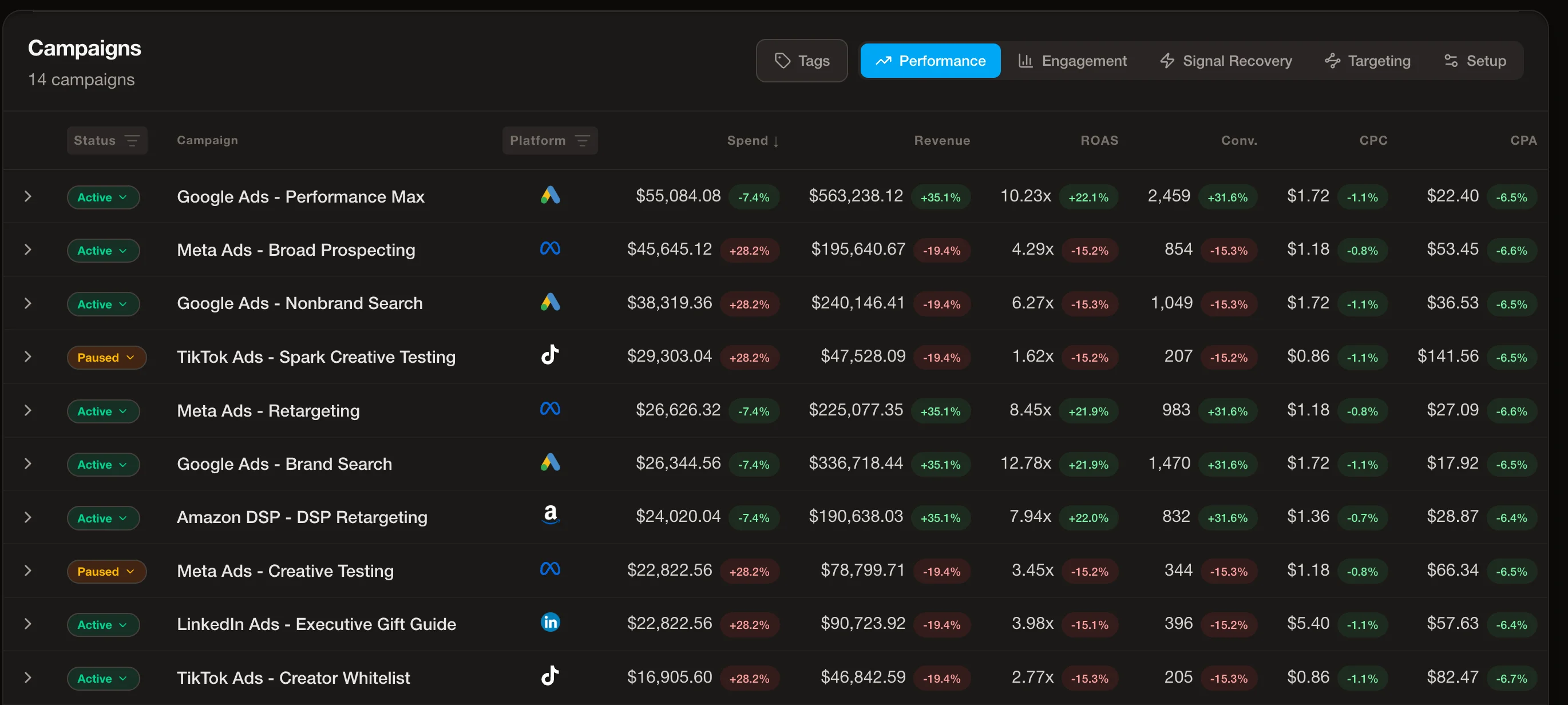
Default view; default sort is Spend (descending). Currency values are USD formatted; conversions can be fractional because attribution splits credit across campaigns.
| Column | Meaning |
|---|---|
| Spend | Platform-reported spend for the period. |
| Revenue | Platform-reported conversion value attributed to the campaign. |
| ROAS | Revenue ÷ Spend. 4.00x = $4 revenue per $1 spent. |
| Conv. | Platform-reported conversions. Decimals reflect attribution splits. |
| CPC | Spend ÷ Website Clicks. Higher than the platform's default CPC because in-platform engagement is excluded. |
| CPA | Spend ÷ Conversions. |
Use Performance view to decide which campaigns deserve more budget, less budget, or a setup audit. High spend with weak ROAS or CPA is a budget question. Strong ROAS with meaningful spend is a scale candidate. Strong platform revenue here but weak Kleerr Revenue in Overview is a reconciliation question, not a reason to immediately scale.
Engagement view
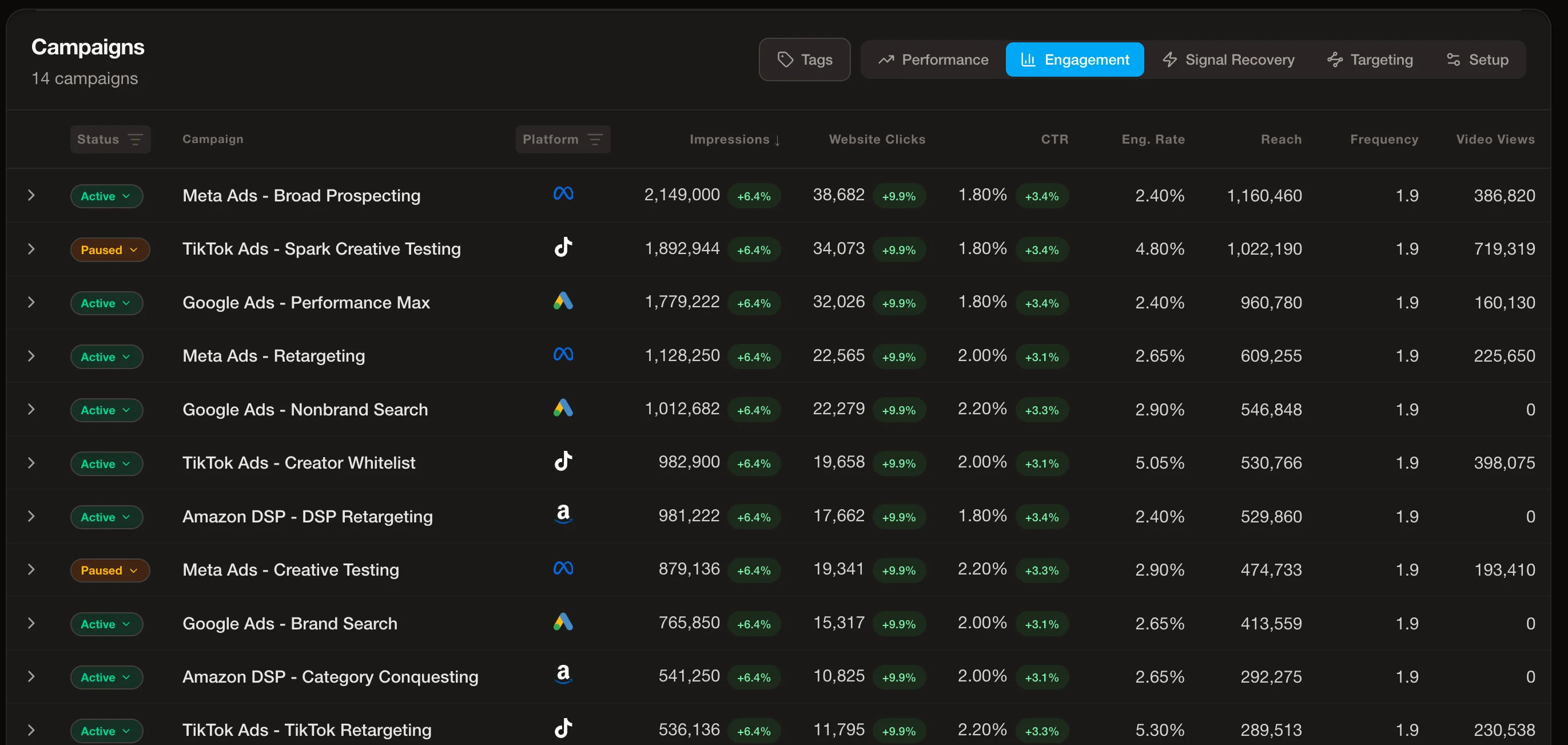
Default sort is Impressions (descending).
| Column | Meaning |
|---|---|
| Impressions | Times the ad was shown. |
| Website Clicks | Clicks the platform reports as outbound to your site. Excludes in-platform engagement (likes, video plays, profile taps). |
| CTR | Website Clicks ÷ Impressions. |
| Eng. Rate | Share of impressions that produced a click, like, share, comment, or other engagement. |
| Reach | Unique people who saw the ad at least once. |
| Frequency | Impressions ÷ Reach — average times each person saw the ad. |
| Video Views | Video plays counted by the platform (typically ≥3s or 25% watched). |
Use Engagement view to separate delivery problems from conversion problems. High impressions with weak CTR points to creative, offer, audience, or placement fit. High CTR with weak downstream performance points to landing page, tracking, or audience quality. High frequency with flat results can mean the same people are seeing the ad too often.
Signal Recovery view
Recovery conversion columns are hidden until the recovery conversion data is reliable enough to display. The view currently shows only:
| Column | Meaning |
|---|---|
| Platform Conv. | Conversions reported by the ad platform (Meta, Google). |
| Revenue | Attributed revenue from recovered conversions. |
Use Signal Recovery view to find campaigns where browser-side tracking is not telling the whole story. Recovered conversion revenue can explain why platform-reported performance looks weak while Kleerr still sees paid-source outcomes. It is also a cue to review CAPI, tracking parameters, pixel health, and attribution coverage before cutting spend.
Targeting view
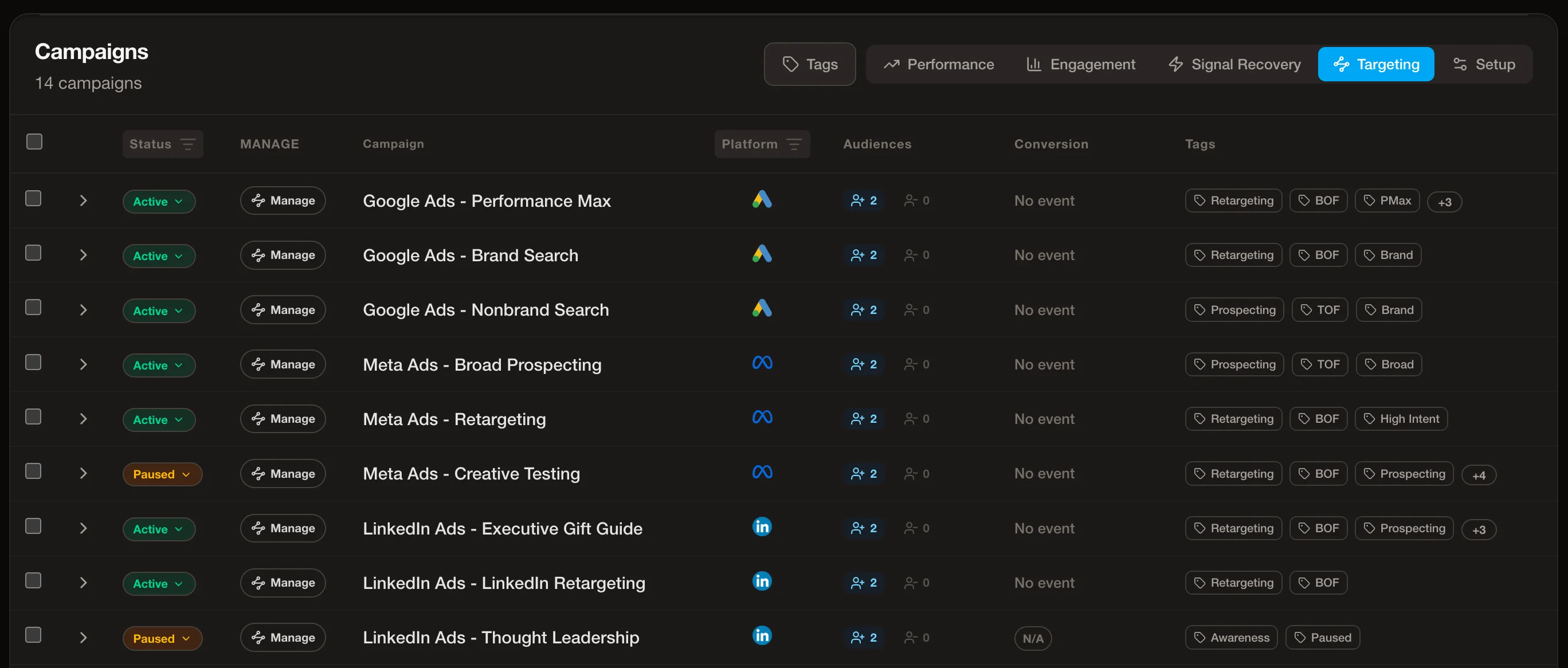
Default sort is targeting status. This view adds a leading select checkbox column and a Manage column (opens the targeting workspace), then:
| Column | Meaning |
|---|---|
| Audiences | Included / excluded / external / Kleerr audience assignments on this campaign or ad group. Counts show include (+), exclude (−), and Kleerr-segment chips; Performance Max campaigns roll up "Set in N asset groups." |
| Conversion | The platform conversion event (and optional Kleerr action link) staged for CAPI / reporting. Campaign rows roll up the event set across child ad sets; ad sets may show "Campaign: …" when they inherit. |
| Tags | Editable reporting tags (TOF / BOF / Retargeting / Promo / custom). Tags group campaigns in Kleerr reporting only — they do not change platform targeting. |
Audiences, Conversion, and Tags are editable inline (per row) or in bulk: select multiple campaigns / ad groups and a floating action bar offers Edit audiences, Edit conversion, and Edit tags. Audience editing supports include / exclude and Custom vs Lookalike (lookalike on Meta, and Google Demand Gen). Audience edits only apply where the platform allows them — e.g. Google sets audiences at the campaign level, and Performance Max treats audiences as signals, not strict targeting, so the cell explains when editing is blocked.
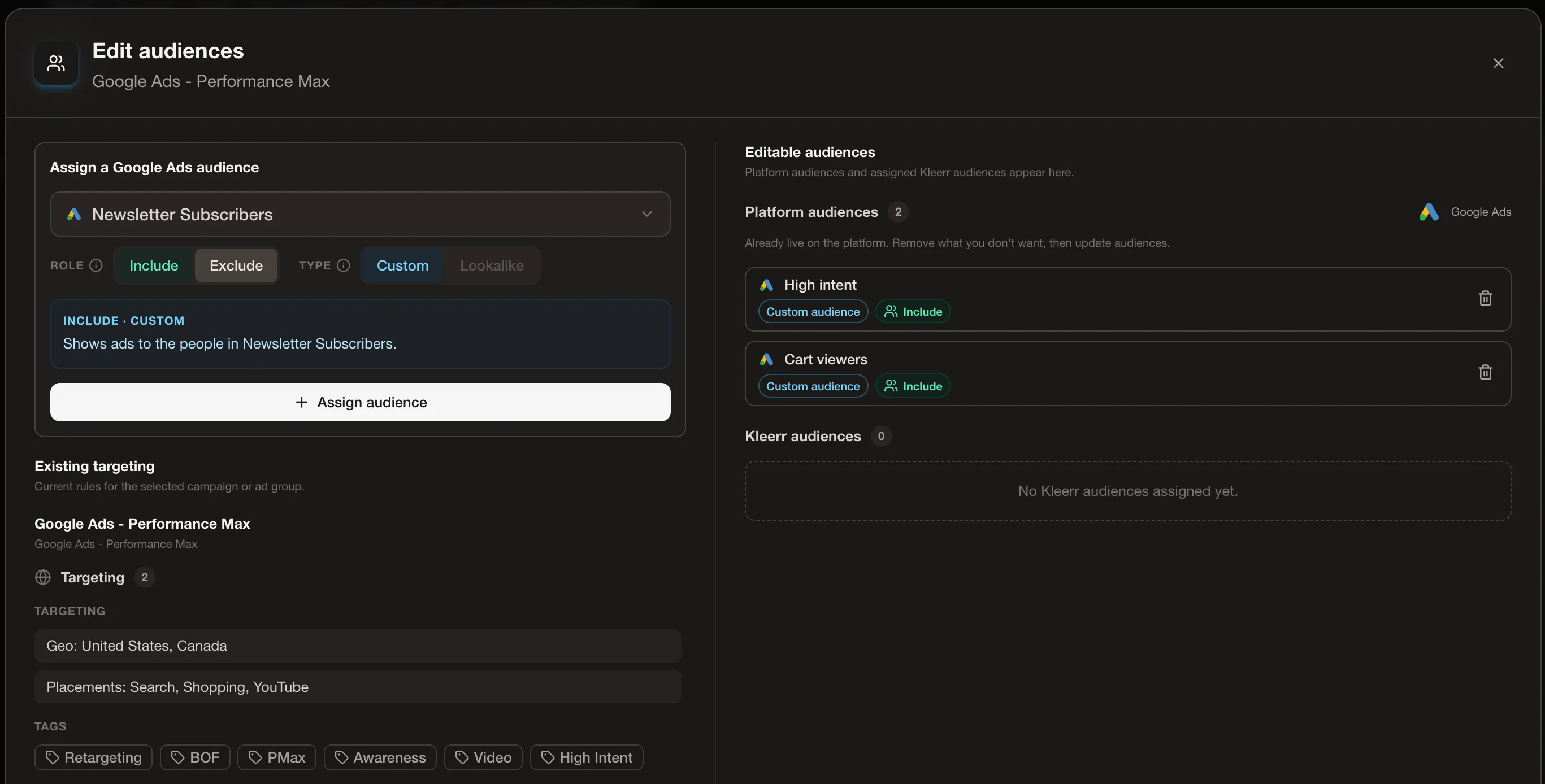
Use Targeting view to explain why a campaign performed the way it did. A campaign tagged BOF and targeting cart viewers should be judged differently than broad prospecting. Audience includes/excludes tell you who was eligible. Conversion links tell you which server-side signal the campaign is supposed to optimize or report against. Tags give you a clean strategy layer when platform names are inconsistent.
Targeting setup purpose
The Targeting view is the operational bridge between Builder and ad platforms. It answers three setup questions that Overview cannot answer:
| Setup area | What you select | Usefulness | Builder requirement |
|---|---|---|---|
| Audiences | Existing platform audiences, synced Kleerr audiences, includes, excludes, custom audiences, and supported lookalikes. | Controls who sees the ads, who is suppressed, and which seed audience a lookalike should resemble. It also documents whether a campaign is prospecting, retargeting, retention, or suppression-driven. | A Kleerr audience needs a Builder Segment first. To make that segment available on a platform, sync it through an ad-platform audience action or select an existing platform audience from the account catalog. |
| Conversion | A Builder Send Event action on the ad-platform channel, such as Purchase CAPI, Lead CAPI, or Cart Abandoned CAPI. | Shows which server-side signal the campaign should optimize or report against. This is different from the platform's own pixel claim; it is the Kleerr-managed event link. | A Builder Action with action type Send Event must exist and be active. Only conversion-objective campaigns/ad groups are eligible for a linked CAPI conversion. |
| Tags | Reporting labels such as TOF, MOF, BOF, Prospecting, Retargeting, Retention, Lookalike, Seasonal, Promo, Evergreen, Testing, or custom labels. | Groups campaigns for Kleerr reporting and review. Tags are useful for strategy rollups and QA, but they do not change live platform targeting or CAPI behavior. | No Builder object is required. Tags are Kleerr-only reporting labels. |
Read audiences as "who should receive or not receive these ads." Read conversions as "what server-side event this campaign should optimize/report against." Read tags as "how Kleerr should classify the campaign for reporting." All three make Overview easier to interpret: a poor ROAS on a broad prospecting tag means something different than the same ROAS on a hot cart-abandoner audience.
Audience types and roles
For segment strategy, ecommerce examples, custom seeds, exclusions, and lookalike guidance, see Audience segments.
| Audience concept | Meaning | Typical use |
|---|---|---|
| Include | People eligible to see the ad. | Retarget cart abandoners, reach a retention audience, or focus a campaign on a qualified segment. |
| Exclude | People kept out of delivery. | Suppress recent buyers, customers, existing leads, or anyone already converted. |
| Custom audience | The people in the selected audience itself. | Direct retargeting, suppression, retention, and lifecycle campaigns. |
| Lookalike | New people who resemble the selected seed audience. | Prospecting from high-quality buyers, VIPs, leads, or other valuable seed groups. |
| Platform audience | An audience already present in the ad account. | Use existing platform-side audiences without rebuilding them in Kleerr. |
| Kleerr audience | A Builder Segment surfaced as an audience. | Keep ad targeting tied to live Kleerr event logic such as buyers, abandoners, leads, or suppressions. |
Platform limitations matter. Google can set some audiences at campaign level; Meta and TikTok commonly attach audiences at ad set/ad group level; Performance Max treats audiences as signals rather than strict targeting. When Kleerr cannot edit a level safely, the Targeting cell or modal explains the block.
Conversion links and CAPI
The Conversion column is about linking a Kleerr-managed CAPI action to the campaign/ad group, not about inventing a new conversion metric in the table. The linked action must already exist in Builder as an active ad-platform Send Event action. Kleerr can use the Identity Graph to enrich those server-side events with eligible session journey context. Examples:
| CAPI action | Common campaign use |
|---|---|
| Purchase CAPI | Acquisition, prospecting, shopping, and purchase-optimized campaigns. |
| Lead CAPI | Lead-gen, demo request, and CRM pipeline campaigns. |
| Cart Abandoned CAPI | Cart recovery and high-intent retargeting. |
| Checkout Abandoned CAPI | Checkout recovery and lower-funnel retargeting. |
| Closed-Won CAPI | B2B pipeline quality and offline conversion feedback. |
If no CAPI action exists, the modal links to Builder so one can be created first. If a selected campaign is not conversion-oriented, Kleerr skips it for conversion-link edits.
For the identity lookup behind CAPI enrichment, see Kleerr Identity Graph. For the full routing and audience workflow, see Kleerr CAPI overview and CAPI and audience sync.
Reporting tags
Tags are not sent to ad platforms and do not affect delivery. They are useful because platform campaign names are often inconsistent. Recommended tags include:
- funnel stage: TOF, MOF, BOF;
- strategy: Prospecting, Retargeting, Retention, Lookalike, Broad;
- operating context: Seasonal, Promo, Evergreen, Testing.
Use tags when you want to compare campaign groups in Kleerr without changing ad platform configuration.
Setup view
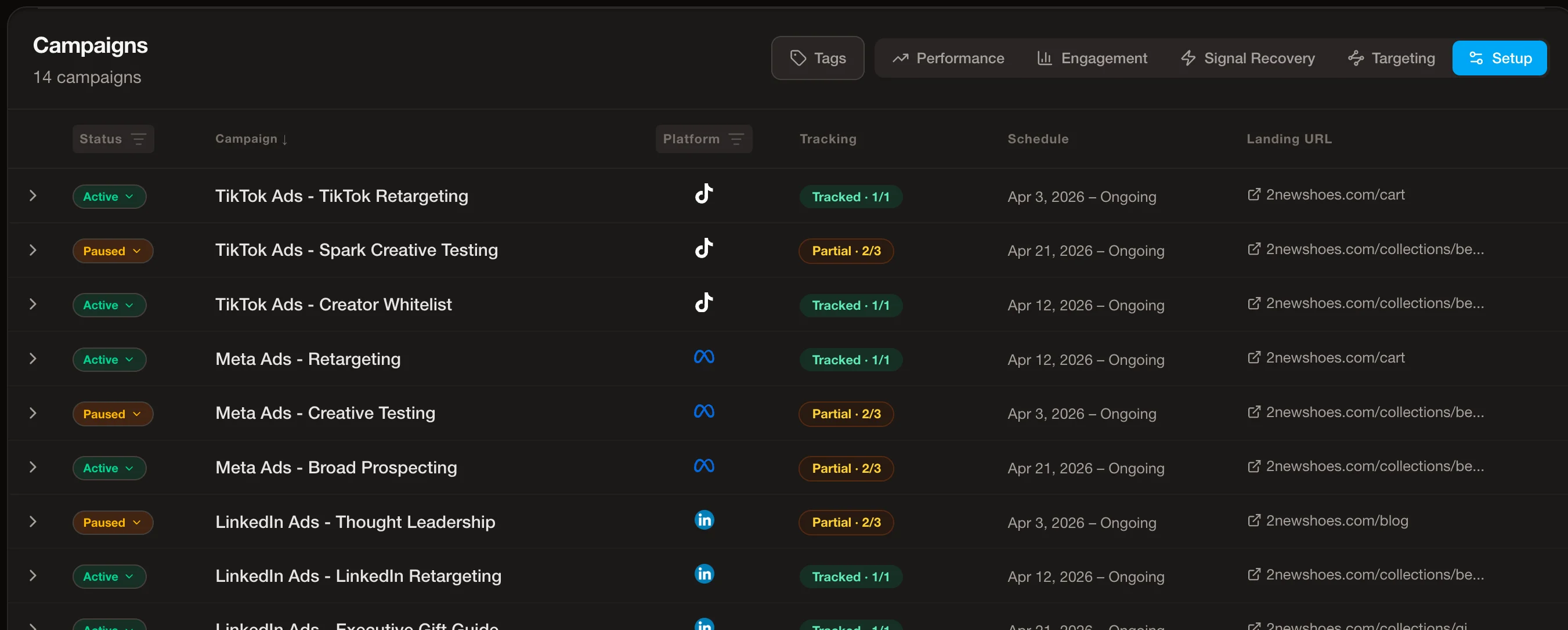
Default sort is Campaign name.
| Column | Meaning |
|---|---|
| Tracking | Per-row Kleerr tracking status pill (Tracked / Partial / Untracked). Shows a coverage count like "Partial · 3/12" on Meta/TikTok rollup rows. Available when ad-tracking is enabled for the platform. |
| Schedule | Campaign / ad set start–end date, or "Ongoing" when no end date. |
| Landing URL | Destination URL for the campaign or ad, truncated with the full URL on hover. |
Use Setup view before trusting performance comparisons. A campaign with partial or missing tracking may undercount sessions, revenue, and recovered signals. Schedule explains whether a campaign had enough time in-market to compare fairly. Landing URL helps catch campaigns pointed at the wrong page, stale offer, cart, collection, or broken destination.
Ad Manager row-level tracking status
The Tracking column (Setup view) and the per-row status pill summarize Kleerr parameter coverage:
- Tracked: expected Kleerr tracking parameters are present.
- Partial: some child entities are tagged but not all (the chip shows tracked count over total count).
- Untracked: expected tracking parameters are missing.
The status source is labeled per row (account template, campaign template, ad group template, ad template, ad URL params, or campaign params). Google and LinkedIn track at the campaign level; Meta and TikTok track at the ad level, so parent rows roll up child-ad coverage.
Ad Tracking tab
The Ad Tracking tab is a per-account install/health surface. It lists one row per connected ad account across Google, Meta, LinkedIn, and TikTok (only platforms with ad-tracking enabled and a connected or action-required integration). Columns:
| Column | Meaning |
|---|---|
| Platform | Ad platform icon + label. |
| Account | Account name and ID. |
| Template | The effective tracking-status pill (see diff states below). |
| Active tracked | Active entities tracked, with percentage. The unit is campaigns (Google, LinkedIn) or ads (Meta, TikTok). |
| Total tracked | Tracked coverage across all active and inactive entities, with percentage. Google rows append a note when campaign / ad-group overrides need attention. |
| Last verified | Timestamp of the most recent tracking verification. |
| Actions | Manage — opens the install / verification modal for that account. |
Tracking diff states (Template column)
The Template pill is derived worst-state-wins across account, campaign, and ad-group levels:
- Match ("Tracking installed"): account template matches Kleerr and no override conflicts.
- Partial: account matches but one or more campaign / ad-group overrides conflict (or coverage is incomplete on Meta / TikTok).
- Conflict: the installed account template conflicts with Kleerr's.
- Missing: no Kleerr tracking template installed at the account level.
- Unsupported: legacy read-only snapshot (e.g. some Meta states) where the template can't be evaluated.
Account-level Missing / Conflict / Unsupported takes priority over override state — a broken account install can't be rescued by clean overrides. Otherwise any single conflicting campaign- or ad-group override drops the pill to Partial.
If tracking status cannot be verified, the row shows "Status unavailable — reconnect" and dashes for coverage.
For step-by-step install instructions per platform, see Google, Meta, TikTok, and LinkedIn.
Good versus bad KPI examples
- High spend with no conversion metrics can mean tracking is missing, not that the campaign truly produced zero conversions.
- High platform ROAS but low Kleerr Revenue in Overview means the platform is claiming more value than Kleerr verified for that paid source — the platform may be over-reporting.
- Tracked status is good because it improves source matching. It does not guarantee profitability.
- Partial tracking is a setup risk. It splits attribution quality across campaigns or ads and makes row-level comparisons unreliable. On the Ad Tracking tab, treat any non-Match Template state as a fix item.
- "Set in N asset groups" or "Campaign: …" in the Conversion / Audiences cells is normal inheritance, not an error — it means the setting lives on a parent or child entity.
Data notes
- Ad Manager Revenue is platform-reported; Advertising Overview Revenue is Kleerr-attributed. Do not compare the labels without checking page context.
- Some conversion metrics are nulled when spend exists but no conversion or revenue signal exists. This protects against misleading zeros but can also hide true zero-conversion outcomes.
- Signal Recovery shows the supported recovery columns for this view.
- Tag and status filters apply over the campaigns already loaded — paging or "Load more" may surface additional matches. The platform filter is different: changing it refreshes campaigns for that platform.
- Platform spend, clicks, reach, impressions, and conversion values are only as current as the latest successful platform sync. While a platform backfills, expanded rows show "Data is being processed."